For two computers sharing two screens, the best KVM switch for dual monitors we can verify is the Level1Techs DisplayPort 1.4 Dual Monitor / Two Computer KVM. Single-output HDMI switches like the ATEN CS22H switch only one screen.
The best KVM switch for dual monitors gives each of your two computers two separate video paths, so both screens follow you when you switch. This guide is for people with two computers and two monitors who want one keyboard, one mouse and a single switch to move everything across. Typical pairings are a work laptop with a gaming PC, or two desktops. Our recommendation is deliberately narrow. If both computers have two DisplayPort outputs, the Level1Techs DisplayPort 1.4 Dual Monitor / Two Computer KVM is the only true dual-monitor switch in our verified research set. If one machine has a single video output, or you only need one screen switched, the single-display options below work as a deliberate workaround rather than a direct substitute.
We do not run lab tests. Everything here comes from manufacturer specifications checked for this guide, and where those documents stop, we say so. You can read more about how we research gear. If you only share one screen between two machines, our broader best KVM switch guide covers that case in more depth.
Quick picks at a glance
| Product | Best for | Screens switched | Key verified spec |
|---|---|---|---|
| Level1Techs DisplayPort 1.4 Dual Monitor / Two Computer KVM | Two desktops with DisplayPort outputs, including high-refresh setups | Two | Published modes up to 4K120 or 8K30; Display Stream Compression supported |
| ATEN CS22H | Switching one HDMI screen while the second monitor uses its own inputs | One | Up to 4096×2160 at 60 Hz |
| StarTech SV221HUC4K | A USB-C laptop plus an HDMI computer sharing one screen | One | One HDMI output up to 3840×2160 at 60 Hz |
| Ergotron LX Dual Side-by-Side Arm | Mounting the two screens above a crowded KVM desk | Not a switch | Two displays up to 27 inches, 7–20 lb each |
Only the first row is a best KVM switch for dual monitors in the strict sense. The two HDMI switches handle one screen each, and the arm solves the physical side of a two-monitor desk. We have not padded this list with unverified dual-monitor models. Several brands sell four-monitor and triple-monitor KVMs, but we have not verified any of them, so they are not covered here.
What a dual-monitor KVM switch has to do
A KVM switch shares a keyboard, video and mouse between computers. For two monitors, the video part doubles. Each computer must send two independent video signals into the switch, and the switch must route both signals to your two monitors at the same time. That means a two-computer, two-monitor KVM needs four video inputs and two video outputs.
Three things decide whether a given switch fits your desk:
- Connector type. DisplayPort and HDMI switches are separate product families. Your computers, the switch and your monitors should all use the same format, or you need adapters the switch maker supports.
- Bandwidth and refresh rate. A switch sits in the video path, so its published modes cap what your monitors can show. A high-refresh gaming monitor is only as fast as the switch and cables allow.
- USB handling. The keyboard and mouse side varies. Some switches pass USB through like a hub, which means devices reconnect after each switch. Others present an emulated keyboard and mouse to each computer, which can block special keys or software features. Check what the maker says about your exact peripherals.
One common confusion: a USB switch that only moves your keyboard and mouse is not a KVM. It does not touch video at all, so your monitors stay on whichever computer they are cabled to.
Verified picks and the honest workarounds
Level1Techs DisplayPort 1.4 Dual Monitor / Two Computer KVM

This is the one model in our research set that is a best KVM switch for dual monitors by design. Level1Techs states that it shares two monitors and USB peripherals between two computers. Published video modes include up to 4K at 120 Hz or 8K at 30 Hz, and it supports Display Stream Compression. The maker says it works with USB 3.2 peripherals and USB 2.0 HID devices, so a keyboard, mouse and faster USB accessories can all sit behind it.
Who should choose it: people with two desktops, or a desktop and a workstation, where each machine has at least two DisplayPort outputs. It also suits gamers who want a high-refresh mode, provided that mode is in the published list.
Limitations:
- Usable modes depend on bandwidth, cables and display compatibility, not only on the headline figures.
- The manufacturer says overclocking is not supported, so monitor refresh modes above the published list are not guaranteed.
- Level1Techs sells more than one USB interface variant. Confirm which one you are buying before you plan your peripherals.
- It is a DisplayPort product. Laptops with one HDMI port or a single video-capable USB-C port may not supply two signals.
ATEN CS22H

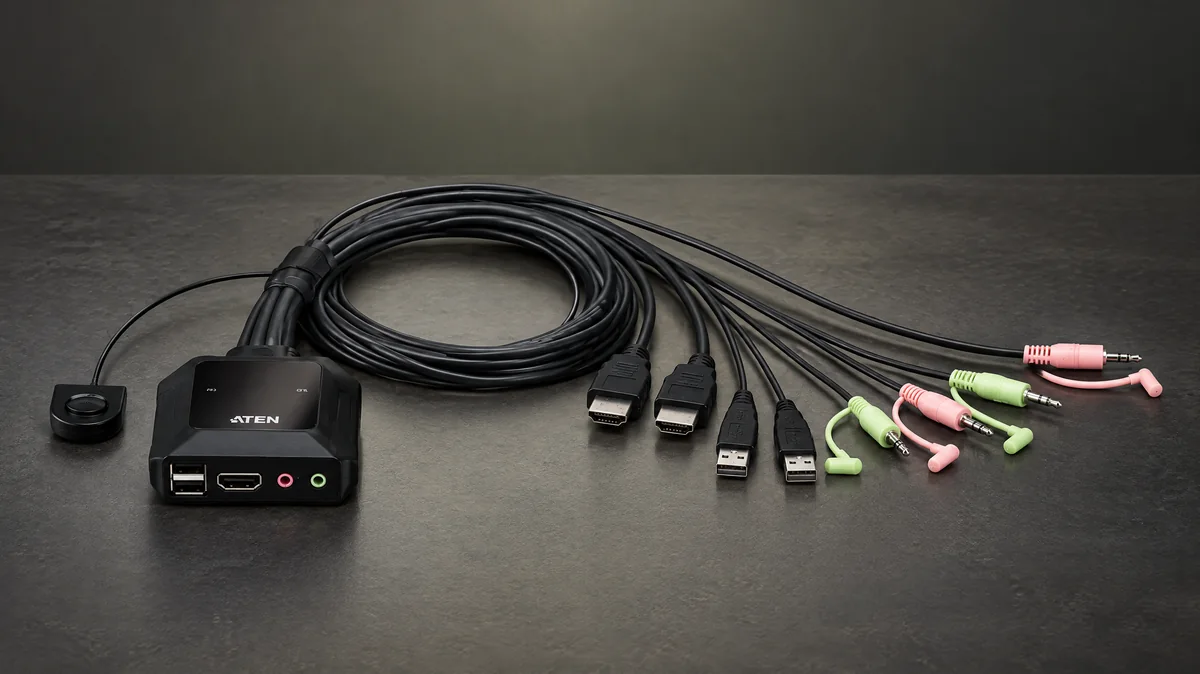
The ATEN CS22H is a two-computer USB and HDMI cable KVM with a published maximum video mode of 4096×2160 at 60 Hz. It switches through a remote port selector, which can sit on the desk while the switch body stays out of sight. It has one HDMI output, so it is not a dual-monitor KVM.
Who should choose it: people who want the hybrid approach. You route your main screen through the CS22H, and you connect your second monitor directly to both computers using two of its inputs. When you switch, the main screen and the keyboard and mouse move automatically, and you press the second monitor’s input button yourself.
Limitations:
- Switching the second screen is a separate manual step every time.
- The CS22HF is a different model with a lower maximum resolution. Do not assume its specifications match the CS22H.
- HDMI only, so DisplayPort-only graphics outputs need a supported adapter.
StarTech SV221HUC4K

The StarTech SV221HUC4K handles a mixed desk: one host connects over USB-C with DisplayPort Alt Mode, and the other connects with HDMI plus a USB cable. It has one HDMI output up to 3840×2160 at 60 Hz, is USB bus-powered, switches with a push button and includes the host cables. StarTech’s specifications make clear this is not a dual-monitor KVM.
Who should choose it: laptop users whose machine has one video-capable USB-C port and who want that laptop and a desktop to share one main monitor. The laptop’s own screen often becomes the second display while it is active, and the desktop can keep a second monitor wired directly.
Limitations:
- The USB-C host must support DisplayPort Alt Mode. A USB-C port that only carries data or charging will not output video.
- One shared screen only, so true two-monitor switching needs a different product.
Ergotron LX Dual Side-by-Side Arm

A dual-monitor KVM desk carries a lot of cable, and freeing the desk surface makes routing easier. Ergotron designs the LX Dual Side-by-Side Arm for two displays up to 27 inches, with each display between 7 and 20 lb and a maximum extension of 25 inches.
Who should choose it: anyone running two monitors of 27 inches or less who wants the switch, cables and power supplies tucked behind or under the screens.
Limitations: the weight range applies to each display, not to the two combined. Check monitor weight without its stand, and check the exact finish or SKU for included mounting hardware. For other sizes and clamp types, see our best dual monitor arm guide.
Dual-monitor KVM comparison
| Feature | Level1Techs DP 1.4 Dual Monitor KVM | ATEN CS22H | StarTech SV221HUC4K |
|---|---|---|---|
| Computers | Two | Two | Two |
| Monitors switched | Two | One | One |
| Video format | DisplayPort 1.4 | HDMI | USB-C (DP Alt Mode) or HDMI in, HDMI out |
| Published maximum mode | Up to 4K120 or 8K30, with DSC | 4096×2160 at 60 Hz | 3840×2160 at 60 Hz |
| USB support | USB 3.2 peripherals, USB 2.0 HID | USB keyboard and mouse switching | USB via the host connections |
| Switching method | Not covered in our verified specs | Remote port selector | Push button |
| Main limitation | Needs two DisplayPort outputs per computer | Second screen switched manually | USB-C host must support DP Alt Mode |
How to choose the best KVM switch for dual monitors
Work through your hardware before you look at product pages. The best KVM switch for dual monitors on paper is the wrong one if a single port on one computer cannot feed it.
Compatibility checklist
- Count video outputs on each computer. Each machine needs two free outputs of the type the switch accepts. Laptops are the usual problem.
- Match the connector family. DisplayPort computer outputs suit a DisplayPort switch. HDMI outputs suit an HDMI switch.
- Write down your target mode. List resolution and refresh rate for each monitor, then confirm the combination appears in the switch’s published modes.
- Check your cables. Each cable in the chain must be rated for your target mode. A switch adds a link, so cable quality matters twice.
- List your USB devices. Gaming mice with software, wireless receivers, webcams and drawing tablets behave differently across KVM types. Confirm support with the maker.
- Plan the cable count. Two computers and two monitors means six host cables into the switch, two video cables out, plus peripherals and power.
- Decide how you want to switch. A remote selector or button within reach is easier than reaching behind a monitor.
Worked example: two desktops versus laptop plus desktop
Desk A: a gaming desktop and a work desktop, each with a graphics card offering several DisplayPort outputs, and two 4K monitors with DisplayPort inputs. Every box in the checklist points to a DisplayPort dual-monitor switch. Here the Level1Techs is the best KVM switch for dual monitors in our set. The remaining task is to confirm that your intended refresh rate is a published mode, and to buy cables rated for it.
Desk B: a work laptop with one video-capable USB-C port and a gaming desktop with HDMI and DisplayPort outputs. The laptop cannot feed two video inputs, so a dual-monitor KVM would leave one input empty. The StarTech SV221HUC4K shares the main screen between the laptop’s USB-C port and the desktop’s HDMI output. The second monitor connects only to the desktop, and the laptop’s built-in screen covers the work side. If the laptop needs more ports at the same time, see our USB-C hub guide for what to check about video and charging.
Mistakes people make with two monitors and two computers
- Buying a single-output KVM and expecting two screens. Many listings mention dual monitors when they mean the computer can have two monitors, not that both switch. Count the video outputs on the switch.
- Ignoring the laptop’s ports. A laptop with one video output cannot use a dual-monitor KVM fully, no matter how capable the switch is.
- Assuming any USB-C port carries video. The port must support DisplayPort Alt Mode or a similar video mode.
- Chasing refresh rates outside the published list. Overclocked monitor modes may fail through a switch, and Level1Techs says it does not support them.
- Mixing up model variants. The ATEN CS22H and CS22HF differ in maximum resolution, and Level1Techs offers more than one USB interface variant.
- Using adapters without checking. Converting HDMI to DisplayPort or the reverse can cap resolution or refresh. Use only what the switch maker documents.
- Forgetting where the cables go. Six or more host cables need a route. Plan trays and ties before installing, not after.
Gamers searching for the best KVM switch for dual monitors with a console in the mix should note that a console sends one HDMI signal. It only ever drives one screen, so a single-display HDMI switch or the monitor’s own input button usually fits that job better.
Building the rest of a two-computer desk
The switch is one part of the setup. Our dual PC desk setup guide walks through how the KVM, monitor arm and cable plan fit together. To keep the extra cables tidy, see our desk cable management picks, including an under-desk tray and reusable ties.
Your keyboard and mouse pass through the KVM, so choose models whose features survive the switch. Wired boards are usually simplest; our budget mechanical keyboard guide compares wired and Bluetooth options. If your monitors are larger than 27 inches, compare arms in our monitor arm fit guide. Browse everything in Desk and setup or all PC buying guides.
In short, the best KVM switch for dual monitors is the one your ports, refresh rate and USB devices can actually use. For two DisplayPort desktops, that is the Level1Techs. For laptops or single-screen sharing, a one-output HDMI switch paired with a manually switched second monitor is the honest alternative.
Frequently asked questions
Can a regular KVM switch run two monitors?
Only if it has two video outputs and two video inputs per computer. Most two-port KVM switches, including the ATEN CS22H and StarTech SV221HUC4K, have a single video output, so they switch one screen. You can still use two monitors with them by switching one screen through the KVM and changing the second monitor's input manually, but that is a workaround, not true dual-monitor switching.
How many cables does a dual-monitor KVM switch need?
For two computers and two monitors, plan on two video cables and one USB cable from each computer to the switch, which is six host cables in total. Then add two video cables from the switch to the monitors, plus your keyboard, mouse and any other USB devices. Each video cable must be rated for the resolution and refresh rate you intend to run.
Is a DisplayPort or HDMI KVM better for dual monitors?
It depends on the ports on your computers and monitors. DisplayPort suits desktops with graphics cards that have several DisplayPort outputs and high-refresh monitors. HDMI suits machines with HDMI outputs and screens running 4K at 60 Hz. Avoid relying on adapters to cross formats without checking the switch maker's documentation, because conversion can limit refresh rate and resolution.
Does a KVM switch for dual monitors work for gaming at 120 Hz or higher?
Some can. Level1Techs publishes modes up to 4K at 120 Hz or 8K at 30 Hz with Display Stream Compression, but usable modes depend on bandwidth, cables and the displays themselves, and the maker says overclocked modes are not supported. Check that your exact resolution and refresh combination appears in the published mode list before buying.
Can I use a dual-monitor KVM switch with a laptop?
Only if the laptop can send two separate video signals in a format the switch accepts. Many laptops have one HDMI port or one video-capable USB-C port. If yours has a single output, a single-display KVM such as the StarTech SV221HUC4K, which takes USB-C with DisplayPort Alt Mode, is often the more realistic choice for the shared screen.
Can I connect a PS5 to a dual-monitor KVM switch?
A console sends one HDMI signal, so it only ever drives one screen and does not need dual-monitor switching. A DisplayPort dual-monitor KVM will not accept HDMI directly. For a PC plus console desk, a two-computer HDMI KVM on one screen, or the monitor's own input button, is the simpler route. Confirm USB controller compatibility with the switch maker.
Research-led guides for better PC setups. Read how we select and check gear.