For most people, a dual PC desk setup works best with one keyboard, mouse and set of monitors shared through a KVM switch, a dual monitor arm to free desk space, and an under-desk tray so both computers' cables stay manageable.
A dual PC desk setup puts two computers on one desk: a gaming PC and a streaming PC, a personal desktop and a work laptop, or two machines for development and testing. This guide is for people who want both systems within reach without doubling up on keyboards, mice and cable clutter. For two desktops sharing two monitors, our research points to the Level1Techs DisplayPort 1.4 Dual Monitor / Two Computer KVM as the best fit. If one machine is a USB-C laptop and you only need one screen, the StarTech SV221HUC4K matches that pairing more directly.
We have not tested these products. Recommendations come from manufacturer specifications checked for this guide, and our editorial policy explains how we research gear.
Quick picks for a dual PC desk setup
| Your need | Pick | Why it fits | Main limit |
|---|---|---|---|
| Two computers sharing two monitors | Level1Techs DisplayPort 1.4 Dual Monitor / Two Computer KVM | Built to share two monitors and USB peripherals between two computers | Usable modes depend on bandwidth, cables and displays |
| Two HDMI computers, one 4K screen | ATEN CS22H | USB and HDMI cable KVM; published maximum 4096×2160 at 60 Hz | Not the same as the CS22HF, which has a lower maximum resolution |
| USB-C laptop plus HDMI desktop | StarTech SV221HUC4K | One USB-C host and one HDMI host; one HDMI output up to 3840×2160 at 60 Hz | Laptop must support DisplayPort Alt Mode; single monitor only |
| Two monitors up to 27 inches on arms | Ergotron LX Dual Side-by-Side Arm | 7–20 lb per display; 25 inches maximum extension | Limits are per display, not combined |
| Under-desk cable routing | IKEA SIGNUM | Steel tray, 70×16 cm, listed maximum load 10 kg | Not suitable for glass tabletops |
How a dual PC desk setup works: three common layouts
Before buying anything, decide which layout you are building. Most problems with a dual PC desk setup come from buying a switch for the wrong layout.
Layout 1: shared monitors and peripherals through a KVM
Both computers connect to a KVM switch. Your monitors, keyboard and mouse connect to the switch too, and a button or selector decides which computer you are using. This saves the most space and suits people who use one machine at a time, such as a work desktop by day and a gaming PC at night.
Layout 2: a monitor for each computer, shared input
Each computer keeps its own display, and only the keyboard and mouse move between them. This is common for gaming and streaming, because the streaming PC needs to stay visible while you play. A USB switch or network-based input sharing software can handle the peripherals. Note that a USB-only switch is not a KVM: it moves peripherals but never switches video.
Layout 3: a desktop plus a laptop
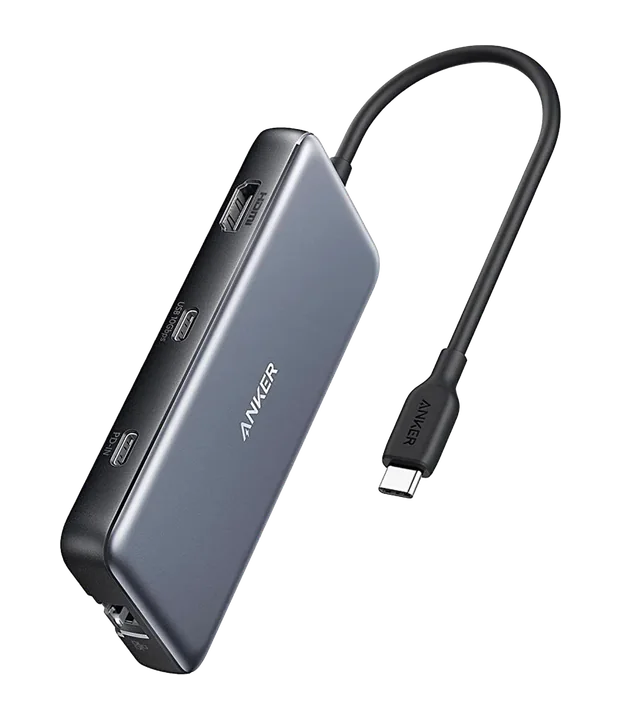
A laptop can act as the second computer, either sharing the desktop’s monitor through a KVM or sitting on a stand as a second screen. If you go this way, check whether the laptop’s USB-C port carries video. Our laptop stand guide covers raising the laptop to monitor height, and our USB-C hub guide explains why a USB-C shape does not guarantee display output.
Which KVM switch fits a dual PC desk setup?
Match the switch to three things: how many computers, how many monitors, and which video connectors your computers and monitors use. Refresh rate matters too if one machine is for gaming. For a broader look at switches, see our best KVM switch guide.
| Model | Computers | Built for dual monitors | Video | Published maximum mode | Switching |
|---|---|---|---|---|---|
| Level1Techs DisplayPort 1.4 Dual Monitor / Two Computer KVM | 2 | Yes | DisplayPort 1.4 | Up to 4K120 or 8K30; DSC supported | Check the manual for your variant |
| ATEN CS22H | 2 | Not listed | HDMI | 4096×2160 at 60 Hz | Remote port selector |
| StarTech SV221HUC4K | 2 (one USB-C, one HDMI) | No | One HDMI output | 3840×2160 at 60 Hz | Push button |
Level1Techs DisplayPort 1.4 Dual Monitor / Two Computer KVM

This is the pick for the classic two-desktop layout where both computers use the same pair of monitors. The manufacturer says it shares two monitors and USB peripherals between two computers, lists modes up to 4K120 or 8K30, and supports Display Stream Compression. It works with USB 3.2 peripherals and USB 2.0 HID devices such as keyboards and mice.
Limitations: those video modes are ceilings, not promises. Available bandwidth, your cables and your displays all limit what you can actually run, and the manufacturer says overclocking is not supported. If your gaming monitor relies on an overclocked refresh rate, plan around its standard modes. The USB interface differs between variants, so confirm the exact version before ordering. Both computers also need DisplayPort outputs, or suitable adapters, for each monitor.
Choose it if: you run two desktops with DisplayPort and want one keyboard, one mouse and two shared screens.
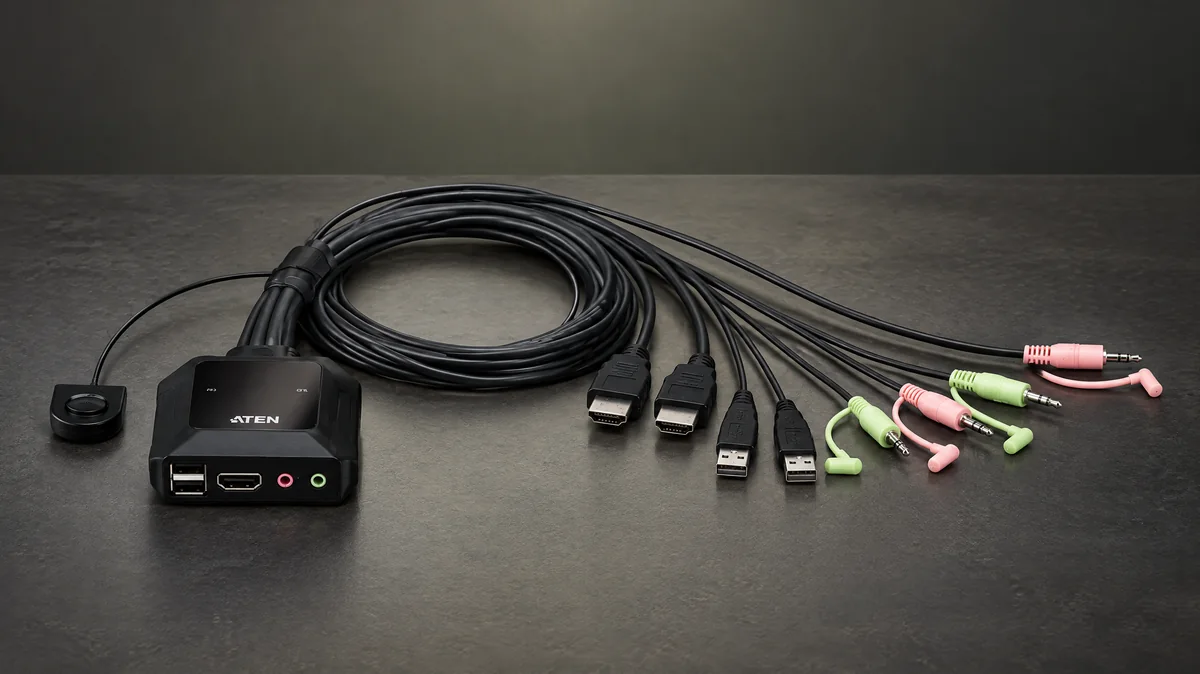
ATEN CS22H

The ATEN CS22H is a two-computer USB and HDMI cable KVM with a published maximum video mode of 4096×2160 at 60 Hz. It switches using a remote port selector, which can sit on the desk while the switch itself stays out of sight. That suits a tidy setup where both towers live under the desk.
Limitations: do not confuse it with the CS22HF, which has a lower maximum resolution. Its specification centers on HDMI, so it fits computers and monitors that already use HDMI. If you want two monitors to switch together, the Level1Techs unit is the one built for that job.
Choose it if: you have two HDMI computers sharing one 4K monitor and want a compact cable-style switch.
StarTech SV221HUC4K

The StarTech SV221HUC4K handles the mixed pairing many remote workers have: one USB-C host with DisplayPort Alt Mode and one HDMI-plus-USB host. It outputs to one HDMI display at up to 3840×2160 at 60 Hz, is USB bus-powered, switches with a push button and includes host cables.
Limitations: the USB-C computer must support DisplayPort Alt Mode, or you will get no picture from it. It is a single-monitor KVM, so it does not suit a two-screen layout.
Choose it if: your dual PC desk setup is a work laptop and a home desktop sharing one monitor, keyboard and mouse.
Mounting two monitors on one desk
Two computers compete for desk surface, and monitor stands take a lot of it. A dual monitor arm lifts both screens and leaves space below for a keyboard, a second laptop or a microphone. Check monitor weight without its stand, the VESA pattern, desk thickness and construction, and clearance behind the desk. Screen size alone does not prove fit.
Ergotron LX Dual Side-by-Side Arm

Ergotron designs this arm for two displays up to 27 inches, with each display between 7 and 20 lb and a maximum extension of 25 inches. Side-by-side placement suits a shared pair of KVM monitors, and it equally suits Layout 2, where each computer drives one screen.
Limitations: the weight range applies to each display, not the pair combined, so a light monitor below 7 lb is also outside the range. Larger screens need a different arm. Mounting hardware can vary by finish and SKU, so check what your exact version includes. Our dual monitor arm guide compares options that cover a wider size range.
Choose it if: both of your monitors are 27 inches or smaller and fall inside the per-display weight range.
Cable management for two computers
A dual PC desk setup roughly doubles your power cables, video cables and USB runs. With a KVM, you also add cables from each computer to the switch. Plan routing before you plug anything in, and keep power strips off the floor where feet and chair wheels reach them. Cable trays and ties organize cables; they are not a substitute for safe electrical installation.
IKEA SIGNUM

IKEA SIGNUM is a powder-coated steel under-desk cable tray measuring 70×16 cm with a listed maximum load of 10 kg. It gives a power strip, KVM and excess cable length somewhere to sit off the floor, which helps when two towers sit under the same desk. It also answers a common search for an IKEA option for this kind of setup.
Limitations: IKEA says it is unsuitable for glass tabletops. The specification we checked is from a UK listing, so confirm local availability and that your desk can take the mounting screws. Wider desks with two computers may need more than one tray. Our cable management guide covers ties and cable holders that pair with a tray.
Choose it if: you have a wood or composite desktop and want cables lifted off the floor.
Dual PC desk setup compatibility checklist
Run through this list before you buy any switch, arm or tray for a dual PC desk setup:
- Computers: list each machine’s video outputs (DisplayPort, HDMI, USB-C with DisplayPort Alt Mode) and spare USB ports.
- Monitors: note inputs, resolution and the refresh rate you actually use. Overclocked modes may not pass through a KVM.
- Monitor count: a single-monitor KVM cannot switch two screens. Confirm that the switch is built for dual monitors if you need that.
- Peripherals: check which USB devices you want to switch. Keyboards and mice are the safe case; webcams, microphones and storage use more bandwidth.
- Cables: count one video cable per monitor per computer plus USB links to the switch, and confirm lengths reach both towers.
- Monitor arm fit: weight without stand, VESA pattern, desk thickness and rear clearance.
- Desk surface: glass tops rule out screw-mounted trays such as SIGNUM and need care with clamps.
Worked example: gaming PC plus work PC, two shared monitors
Say you have a gaming desktop and a work desktop, both with DisplayPort outputs, and two 27-inch monitors with DisplayPort inputs. Here is how the plan comes together:
- Confirm each monitor’s weight without its stand falls within 7–20 lb and that both use a VESA pattern the Ergotron LX Dual supports. If so, mount them side by side.
- Choose the Level1Techs dual-monitor KVM, since both monitors must switch together.
- Connect two DisplayPort cables and a USB cable from each computer to the switch, then connect the monitors, keyboard and mouse to the switch outputs. Follow the manual for exact port assignments.
- Set the gaming PC to a standard refresh mode the switch supports rather than an overclocked one, and test both computers before tidying anything.
- Mount SIGNUM under the desk, place the power strip and spare cable length in it, and bundle the runs to each tower.
Swap one desktop for a USB-C laptop and drop to a single monitor, and the StarTech SV221HUC4K becomes the simpler choice. Keep two separate monitors and you only need to share input, which may not require a KVM at all.
Gaming and streaming on two PCs
For a gaming and streaming pair, consider keeping the streaming PC on its own screen and connecting the microphone and webcam directly to it. That keeps capture devices off the switched path. Our guides to a USB microphone for streaming and the best webcam for streaming cover what to check for each.
Common dual PC desk setup mistakes
- Buying a USB switch and expecting video to switch. Only a KVM with video ports changes what your monitors show.
- Assuming any USB-C port carries video. Without DisplayPort Alt Mode, a laptop shows nothing through a USB-C KVM or hub.
- Reading the published maximum mode as guaranteed. Cables, monitors and bandwidth decide the real result.
- Mixing up model names. CS22H and CS22HF differ, and so do similarly named arm variants. Match the exact SKU.
- Treating arm capacity as combined. A per-display limit means each monitor must fit on its own.
- Leaving cable routing until the end. Two computers create twice the mess; mount the tray before plugging things in.
- Switching your streaming machine away mid-stream. If you need to watch it while playing, give it a dedicated screen.
Once the layout works, finish the desk with shared peripherals that suit both machines. Our budget mechanical keyboard and budget wireless gaming mouse guides compare options, and the external SSD guide helps if you move files between the two computers. Browse more in Desk & setup or all PC buying guides.
Frequently asked questions
Can two computers share the same monitors?
Yes. A KVM switch connects both computers to the same monitors, keyboard and mouse, and you switch between them with a button or selector. Check that the switch supports your number of monitors and your connector type. Some monitors also have several inputs, so you can plug in both computers and change input from the monitor menu, but your keyboard and mouse will not follow automatically.
Do I need a KVM switch for a dual PC desk setup?
Not always. If each computer has its own monitor and you only want to share a keyboard and mouse, a USB switch or network-based input sharing software can be enough. A KVM becomes the cleaner option when both computers need to use the same screens. Remember that a USB-only switch moves peripherals but does not switch video.
How big a desk do I need for two computers?
Measure rather than guess. Add up the width of your monitors as they will sit, the space for both towers if they go on the desk, and room for the keyboard, mouse and any microphone. Desk depth matters too, because monitor arms and viewing distance need clearance. Putting towers on the floor and monitors on arms frees the most surface space.
Should my streaming PC be connected to the KVM?
Often it should not share the main screen. A streaming PC usually needs to stay visible while you play, so many two-PC streamers give it its own monitor and only share the keyboard and mouse when they need to adjust scenes. If you rarely look at the streaming machine during a session, sharing monitors through a KVM saves desk space.
Can a laptop and a desktop share one monitor?
Yes, if the hardware matches. A KVM such as the StarTech SV221HUC4K takes one USB-C host and one HDMI host, but the laptop's USB-C port must support DisplayPort Alt Mode for video. If your laptop lacks that, plan around HDMI instead. Check the laptop's port specification before buying any switch or hub.
Research-led guides for better PC setups. Read how we select and check gear.