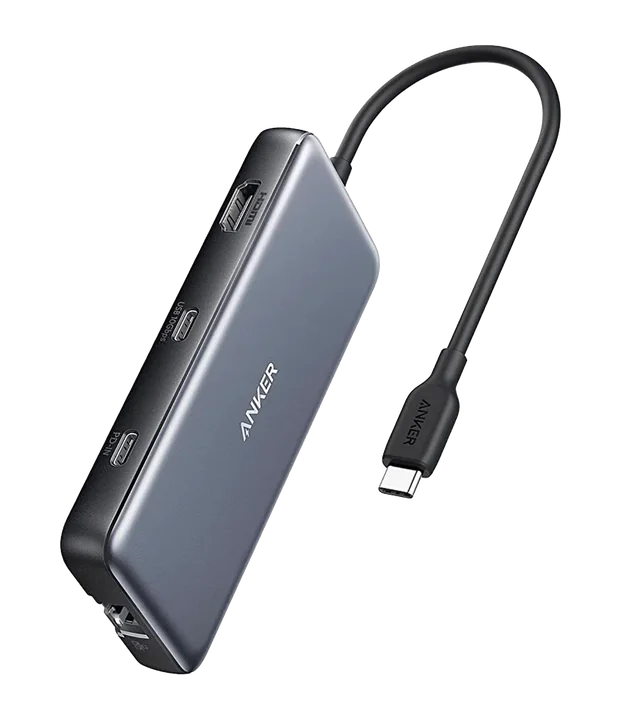
The best KVM switch for Mac and PC depends on ports. The StarTech SV221HUC4K suits a USB-C MacBook plus an HDMI PC on one monitor. The ATEN CS22H fits two HDMI hosts. The Level1Techs DisplayPort 1.4 KVM covers two monitors.
The best KVM switch for Mac and PC is the one that matches the ports on both machines, the number of monitors you share and the refresh rate your PC needs. This guide is for people running a MacBook or desktop Mac beside a Windows gaming PC or work tower who want one keyboard, one mouse and one set of screens. For most MacBook owners with a single monitor, the StarTech SV221HUC4K is the most direct fit because it accepts a USB-C laptop on one side and an HDMI PC on the other. If you share two monitors or care about high refresh rates, look at the Level1Techs DisplayPort 1.4 KVM instead.
Who this guide is for and our quick picks
This is a narrower guide than our general two-computer KVM roundup. It focuses on one specific problem: one machine runs macOS, the other runs Windows, and they rarely have the same ports. A Mac laptop may only have USB-C or Thunderbolt ports, while a desktop PC usually has HDMI and DisplayPort on its graphics card. Picking the best KVM switch for Mac and PC means bridging that mismatch without losing resolution, refresh rate or reliable keyboard input.
Everything below comes from manufacturer specifications checked for this article. We did not run hands-on tests; you can read how we research gear for details.
| Pick | Best for | Mac side | PC side | Monitors |
|---|---|---|---|---|
| StarTech SV221HUC4K | USB-C MacBook plus HDMI PC | USB-C with DisplayPort Alt Mode | HDMI plus USB | One (HDMI out) |
| ATEN CS22H | Two machines with HDMI outputs | HDMI plus USB | HDMI plus USB | One |
| Level1Techs DisplayPort 1.4 Dual Monitor / Two Computer KVM | Two monitors, higher refresh rates | DisplayPort plus USB | DisplayPort plus USB | Two |
How a KVM switch works with a Mac and a PC
A KVM (keyboard, video, mouse) switch connects two computers to one set of peripherals and displays. Press a button or remote selector, and the switch reroutes the video signal and USB devices to the other machine. Neither computer needs special software for basic switching, which is why the operating system is rarely the deciding factor.
What changes between a Mac and a PC is the physical connection. There are three common setups:
- USB-C laptop plus HDMI desktop. The Mac sends video and USB data over one USB-C cable, while the PC uses separate HDMI and USB cables. This needs a switch with a dedicated USB-C host input.
- HDMI on both sides. A desktop Mac with HDMI, or a MacBook with an HDMI port or adapter, pairs with an HDMI PC. A standard HDMI KVM works here.
- DisplayPort on both sides. Common for gaming PCs and for two-monitor setups. The Mac usually reaches DisplayPort through a USB-C to DisplayPort cable or a dock.
Be careful not to confuse a KVM with a USB switch. A USB switch only moves your keyboard and mouse; it leaves the monitor to be switched manually with its input button. That can work, but it is not the same product, and it will not solve the video side.
Best KVM switch for Mac and PC: three picks compared
Each pick below solves a different port layout. Read them as answers to “which setup do I have?” rather than a ranking. The best KVM switch for Mac and PC in your case is the one whose inputs match your cables without a chain of adapters.
StarTech SV221HUC4K

The StarTech SV221HUC4K is designed around exactly the mixed setup many Mac owners have. It accepts two hosts: one USB-C computer using DisplayPort Alt Mode, and one computer connected by HDMI plus a USB cable. It outputs to a single HDMI display at up to 3840×2160 at 60 Hz, switches with a push button, draws power from USB and ships with host cables.
Who should choose it: anyone pairing a MacBook that outputs video over USB-C with a Windows PC, sharing one 4K or lower-resolution monitor at 60 Hz.
Limitations:
- The USB-C host must support DisplayPort Alt Mode. A USB-C port that only carries data will not send video through it.
- It is not a dual-monitor KVM. One HDMI output only.
- The verified specifications do not include laptop charging through the switch, so keep your MacBook’s charger connected separately.
- 60 Hz at 4K is the published ceiling, which rules it out for high-refresh gaming on the PC side.
ATEN CS22H

The ATEN CS22H is a two-computer USB and HDMI cable KVM. Its published maximum video mode is 4096×2160 at 60 Hz, and you switch between machines with a remote port selector, which you can place on the desk instead of reaching behind a monitor.
Who should choose it: people whose Mac and PC both have HDMI outputs, such as a desktop Mac with HDMI beside a tower PC, or a MacBook connected through an HDMI adapter that also passes USB.
Limitations:
- A USB-C-only MacBook needs an adapter or hub that provides both HDMI and a USB connection for the switch. Our USB-C hub guide explains which hubs output video and at what refresh rate.
- Single monitor only, at a 60 Hz maximum at the top resolution.
- Do not substitute specifications from the similarly named CS22HF, which has a lower maximum resolution. Check the exact model number on the listing.
Level1Techs DisplayPort 1.4 Dual Monitor / Two Computer KVM

The Level1Techs DisplayPort 1.4 Dual Monitor / Two Computer KVM shares two monitors and USB peripherals between two computers. Its published modes run up to 4K120 or 8K30, it supports Display Stream Compression, and it works with USB 3.2 peripherals as well as USB 2.0 keyboards and mice.
Who should choose it: anyone with two monitors, or a PC gamer who wants refresh rates above 60 Hz while still sharing the screens with a Mac. It is the strongest match for the common forum request of two high-refresh monitors on DisplayPort.
Limitations:
- Your Mac must be able to drive two external displays. External display support varies by Mac model and chip, so check Apple’s specifications for your exact machine before buying any dual-monitor KVM.
- Usable modes depend on bandwidth, cables and the monitors themselves. The manufacturer says overclocked display modes are not supported.
- The Mac side normally needs USB-C to DisplayPort cables or a dock with DisplayPort outputs.
- Confirm the USB interface variant on the listing before ordering.
For more two-screen options and mounting advice, see our guide to the best KVM switch for dual monitors.
Comparison table: ports, video and switching
This table puts the published specifications side by side. Where a detail is missing from the verified manufacturer documents, we say so rather than guess.
| Spec | StarTech SV221HUC4K | ATEN CS22H | Level1Techs DP 1.4 KVM |
|---|---|---|---|
| Computers | Two | Two | Two |
| Host connections | One USB-C (DP Alt Mode), one HDMI plus USB | HDMI plus USB on both | DisplayPort plus USB |
| Monitors | One | One | Two |
| Top published video mode | 3840×2160 at 60 Hz | 4096×2160 at 60 Hz | Up to 4K120 or 8K30, with DSC |
| Switching | Push button | Remote port selector | Not in verified specs |
| Power | USB bus-powered | Not in verified specs | Not in verified specs |
| Host cables included | Yes | Not in verified specs | Not in verified specs |
| Main caveat | USB-C host needs DP Alt Mode | Do not confuse with CS22HF | Mac must support two displays |
Compatibility checklist before you buy
Run through this list with both computers in front of you. It takes ten minutes and prevents most returns.
- Identify your Mac’s video outputs. Note whether it has HDMI, USB-C or Thunderbolt ports, and confirm in Apple’s specifications that those ports output video.
- Count external displays your Mac supports. This matters most for two-monitor setups. Some Macs support fewer external displays than you might expect.
- Identify your PC’s outputs. Graphics cards usually offer both HDMI and DisplayPort; pick the one the switch uses.
- Write down each monitor’s resolution and refresh rate. Compare those exact modes, not just “4K”, with the switch’s published list.
- List your USB devices. Keyboards and mice are simple. Webcams, microphones and external drives may need higher USB speeds; check that the switch’s USB ports match.
- Plan charging separately. Unless the manufacturer explicitly lists laptop charging, assume the KVM will not power your MacBook.
- Check cable lengths. Measure from each computer to the switch, especially if the PC sits on the floor.
If you are planning the whole desk at once, our dual PC desk setup guide covers KVM placement, monitor arms and cable routing together.
Worked example: matching a MacBook and a gaming PC
Here is how the decision plays out for three realistic desks. Each one shows why the best KVM switch for Mac and PC is a port question first.
One 4K monitor, USB-C MacBook, Windows tower
The MacBook has only USB-C ports, and the PC has an HDMI output on its graphics card. The monitor is 4K at 60 Hz. The StarTech SV221HUC4K matches this layout without extra adapters: the MacBook connects by one USB-C cable, the PC by HDMI and USB, and the monitor by HDMI. The MacBook stays on its own charger.
Desktop Mac with HDMI, plus a work PC
Both machines have HDMI, and the user wants a switch button on the desk rather than at the back of the monitor. The ATEN CS22H fits, with its remote port selector placed beside the keyboard.
Two 1440p high-refresh monitors, MacBook plus gaming PC
This is the hardest case. First, confirm that the MacBook can drive two external displays. If it cannot, no KVM will fix that, and the user may prefer to run the Mac on one screen. If it can, the Level1Techs DisplayPort 1.4 KVM is the candidate, since its published modes reach 4K120 and it supports Display Stream Compression. The buyer should still confirm that their specific 1440p refresh mode, cables and monitors are compatible, because the manufacturer ties usable modes to bandwidth and cable quality.
Common mistakes with Mac and PC KVM setups
Most frustration with the best KVM switch for Mac and PC comes from assumptions rather than faulty hardware.
- Assuming every USB-C port carries video. The connector shape says nothing about DisplayPort Alt Mode support. Check the port, not the plug.
- Buying a USB switch and calling it a KVM. USB-only switches leave you pressing the monitor’s input button every time.
- Ignoring the Mac’s display limit. A dual-monitor KVM cannot add display outputs your Mac does not have.
- Expecting high refresh rates from a 60 Hz switch. If the PC is for competitive gaming, a 4K60 switch will cap your monitor.
- Forgetting keyboard modifier differences. A KVM passes keystrokes through; it does not translate Ctrl to Command. Use the Modifier Keys option in macOS keyboard settings, or a keyboard with a Mac/Windows toggle. Our budget mechanical keyboard guide covers layouts and connection types.
- Chaining too many adapters. Every adapter adds a point of failure. Prefer a switch whose native inputs match your machines.
- Leaving cables in a tangle. Two computers double the cabling. Our cable management guide covers trays, ties and cable holders.
Which KVM switch for Mac and PC should you choose?
Start with your Mac’s ports and your monitor count, then check refresh rate. If you have a USB-C MacBook and one monitor at 60 Hz, the StarTech SV221HUC4K is the simplest match. If both machines output HDMI and you want a desk-mounted selector, choose the ATEN CS22H. If you share two monitors or want refresh rates above 60 Hz on the PC, the Level1Techs DisplayPort 1.4 KVM is the only verified option here built for that job, provided your Mac supports two external displays.
No single model is the best KVM switch for Mac and PC for every desk, and a switch that looks impressive on paper will still disappoint if its inputs do not match your computers. Match the ports, confirm the modes, plan charging separately, and the switch becomes the part of your setup you stop thinking about. For mounting the screens themselves, see our dual monitor arm guide, or browse all desk and setup guides.
Frequently asked questions
Do KVM switches work with both macOS and Windows?
Most KVM switches handle standard USB keyboards, mice and video signals, so the operating system is rarely the barrier. The real constraints are physical: whether your Mac has a port that outputs video, which connector the switch expects, and whether the switch supports your monitor's resolution and refresh rate. Check those three things against the manufacturer's specifications for the exact model before buying, rather than relying on a generic compatibility claim.
Can I use a USB-C KVM switch with a MacBook?
Yes, if the switch is designed for it and your MacBook's USB-C or Thunderbolt port carries DisplayPort Alt Mode video. The StarTech SV221HUC4K is built for this layout: one USB-C host with DisplayPort Alt Mode and one HDMI plus USB host. Its verified specifications do not include laptop charging, so plan to keep your MacBook on its own charger or a separate power source.
What is the best KVM switch for a Mac and PC with two monitors?
Of the switches we verified, the Level1Techs DisplayPort 1.4 Dual Monitor / Two Computer KVM is the one built for two monitors and two computers. Before choosing it, confirm your Mac can drive two external displays, because support varies by Mac model and chip. Then check that both machines can output DisplayPort, using suitable cables or adapters, and that your monitors' modes fall within the published bandwidth.
Will a KVM switch support 144Hz on my gaming PC?
It depends on the switch, resolution, cables and monitor. The Level1Techs DisplayPort 1.4 KVM publishes modes up to 4K120 or 8K30 and supports Display Stream Compression, which makes it the strongest candidate here for high refresh rates. The ATEN CS22H and StarTech SV221HUC4K publish 60 Hz maximums at their top resolutions. Always compare your exact monitor mode with the manufacturer's supported list.
How do I fix the Command and Ctrl keys when switching to a Mac?
A KVM passes keystrokes through; it does not translate shortcuts between operating systems. macOS includes a Modifier Keys option in its keyboard settings, where you can swap Command, Option and Control for a specific keyboard. Many enthusiast keyboards also offer a Mac or Windows layout toggle. Setting this once on the Mac side means you do not need to change anything on the PC.
Research-led guides for better PC setups. Read how we select and check gear.